

Create your first channel
This guide walks you through everything you need to get content playing on your screens — from creating your first channel to broadcasting live.
Time to complete: ~10 minutes
Before you begin
Section titled “Before you begin”Booth Beam is free to use with a limited number of screens and features. To get started, create a free account — no credit card required.
Once you’re logged in, you’re ready.
How Booth Beam works
Section titled “How Booth Beam works”Before jumping in, here’s a quick mental model:
- A Playlist holds your content — images, videos, web pages, or presentations.
- A Channel groups one or more playlists and controls what plays and when.
- Screens are connected to a channel and display whatever that channel broadcasts.
Think of a channel as a TV channel. Your screens are the TVs tuned to it.
Setup broadcasting to your screens
Section titled “Setup broadcasting to your screens”Step 1: Create a Channel
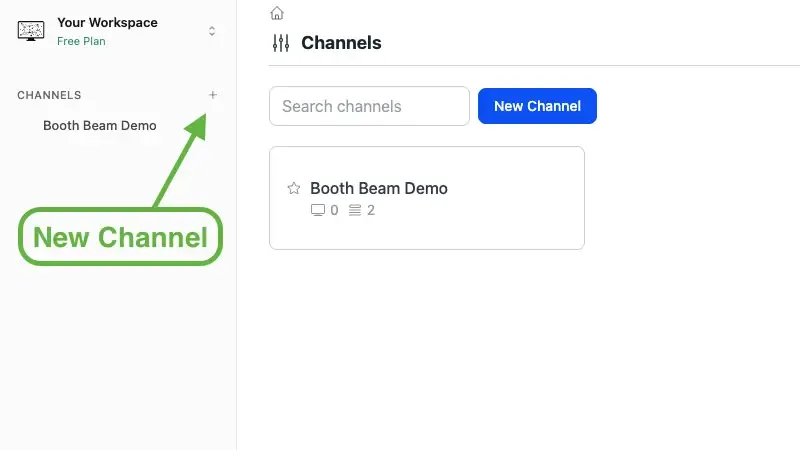
Section titled “Step 1: Create a Channel”In the left sidebar, click New Channel button.
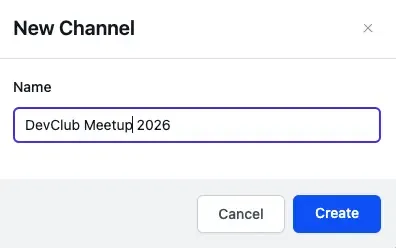
Give your channel a name, and click Create.
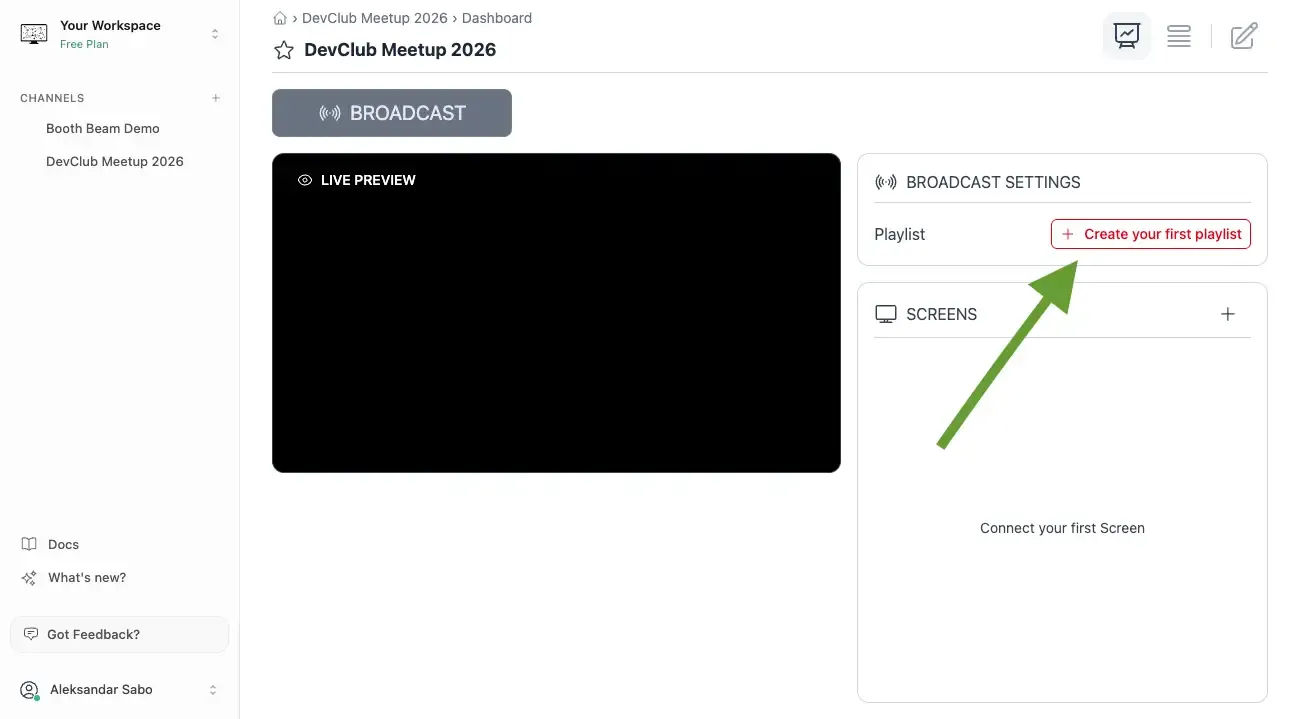
Your channel is now created, but it won’t broadcast anything yet — that comes after you add a playlist.
Step 2: Create a Playlist and add content
Section titled “Step 2: Create a Playlist and add content”Click Create your first playlist
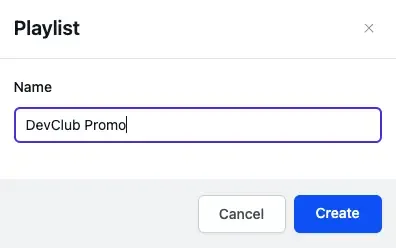
Give it a name and click Create
You’ll be redirected to playlist editor.
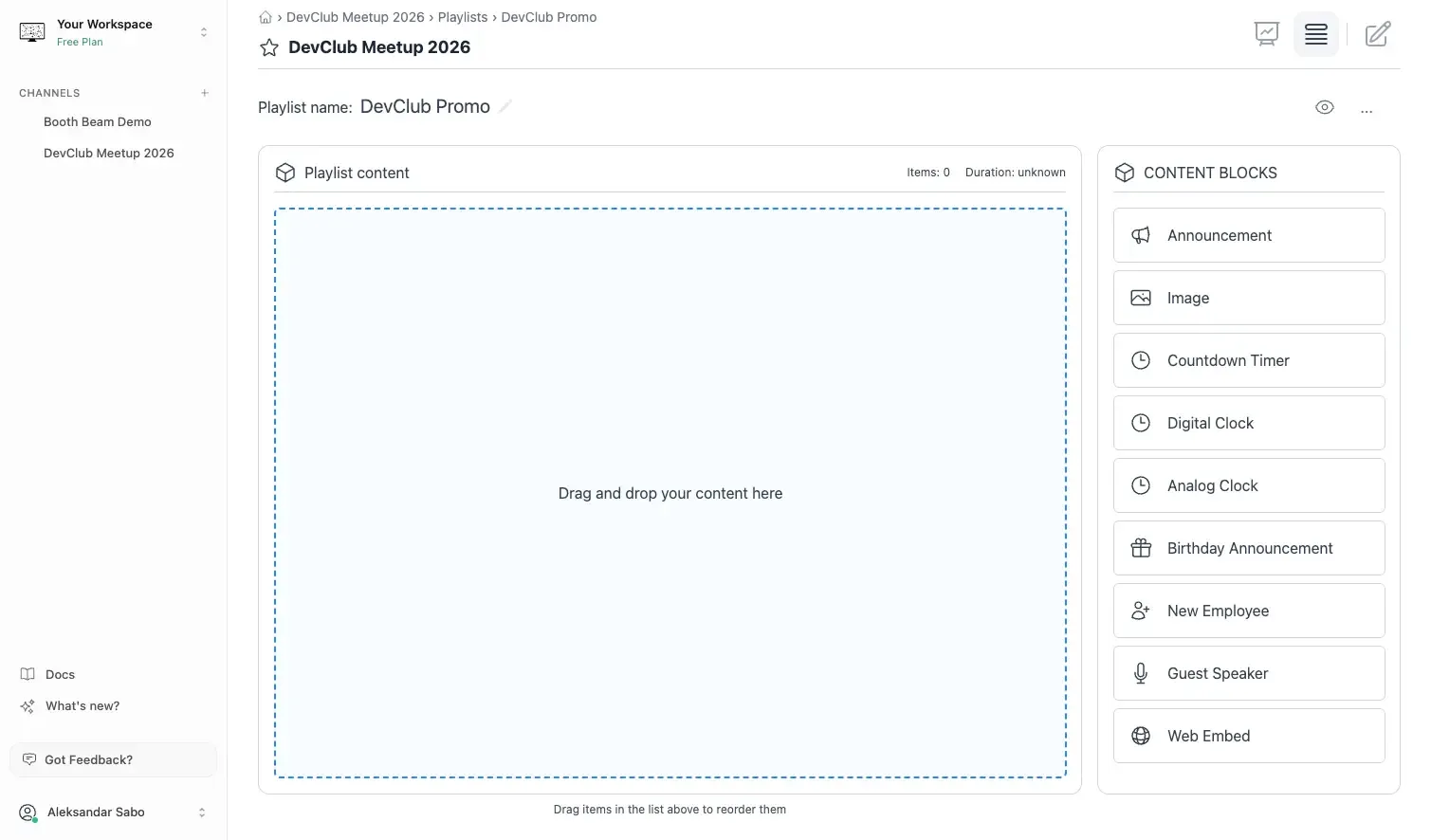
Add your content
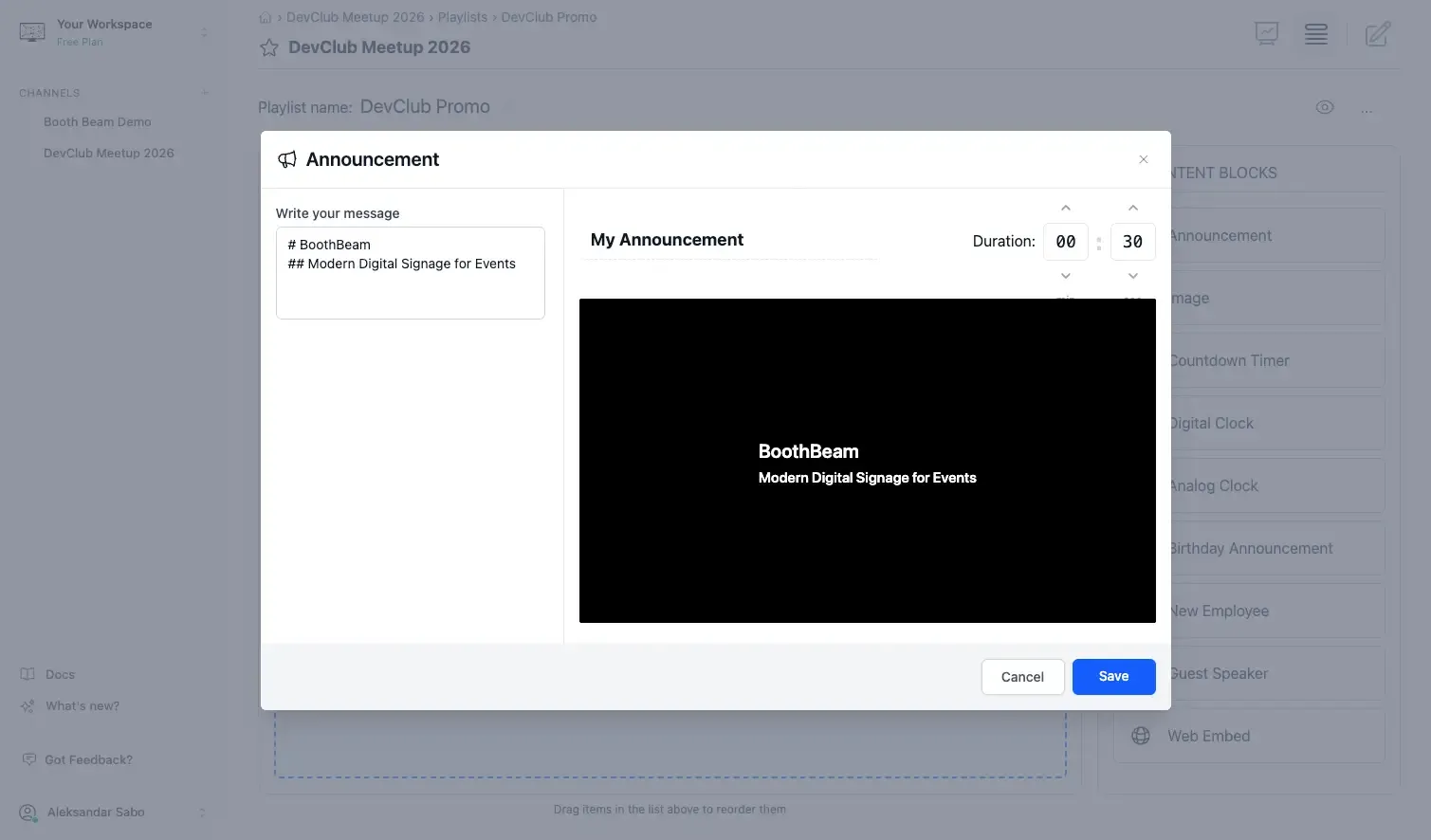
| | What you can add | |---|---| | Announcement | Add your text formatted in markdown | | Image | Upload files directly from your device | | Web Embed | Paste your website link or youtube link |
For each item, set a duration — how many seconds it stays on screen before moving to the next, then click Save
Repeat adding content until your playlist is complete.
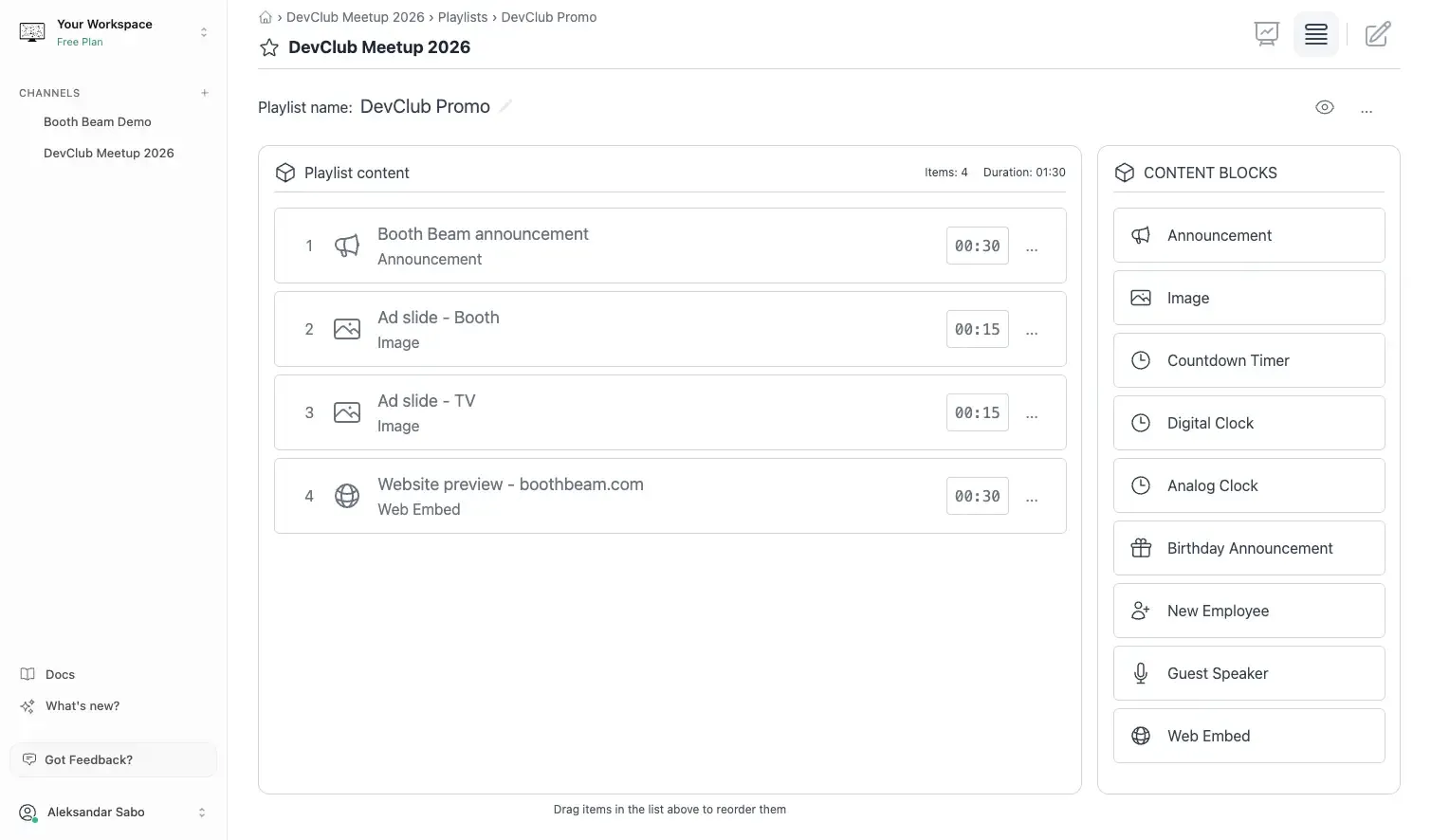
Tip: You can drag items to reorder them at any time.
Step 3: Connect your screen
Section titled “Step 3: Connect your screen”On any device, open tv2bb.com in a full-screen browser window.
Once browser page is open on your display, a pairing code will appear on screen.
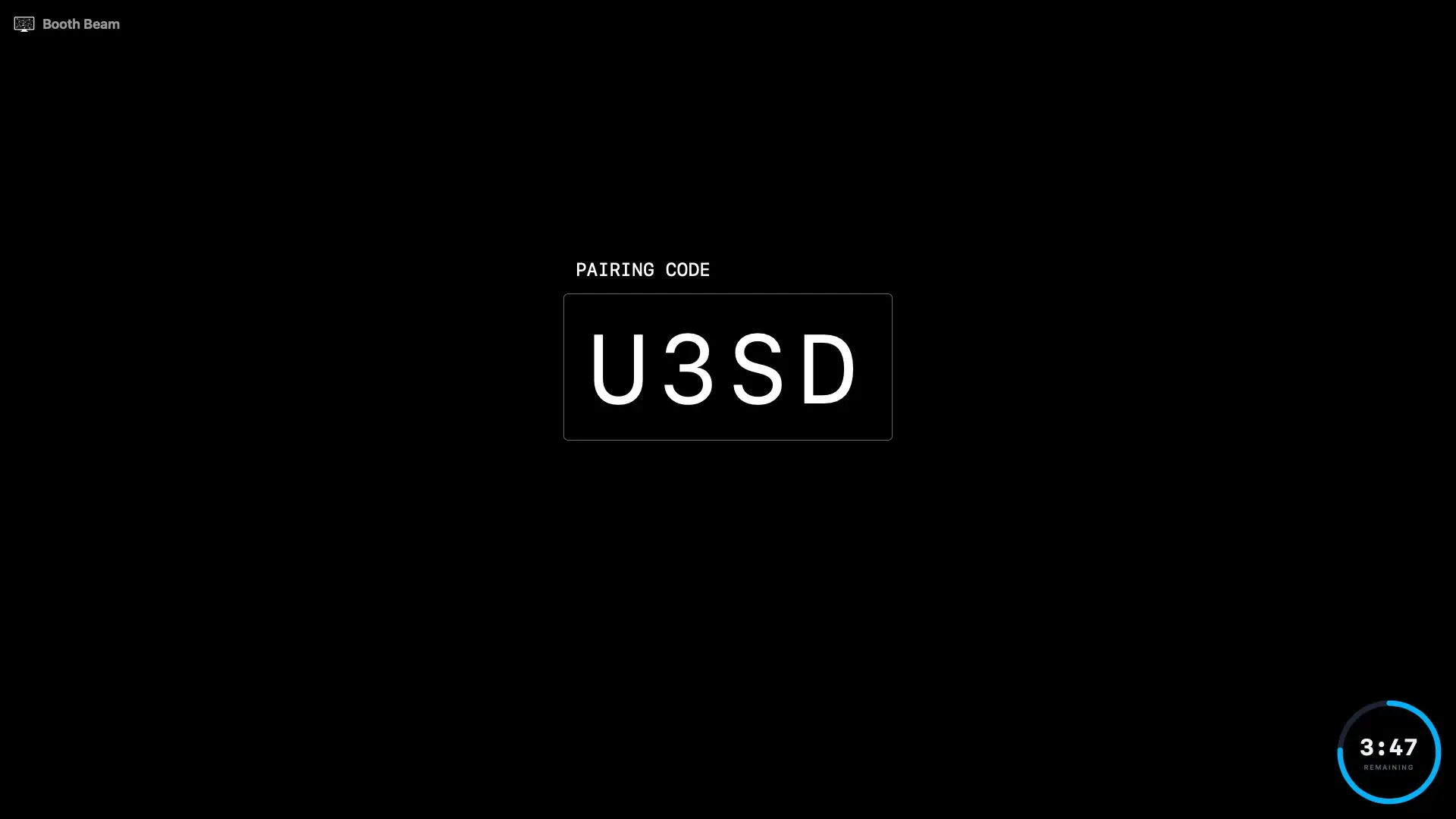
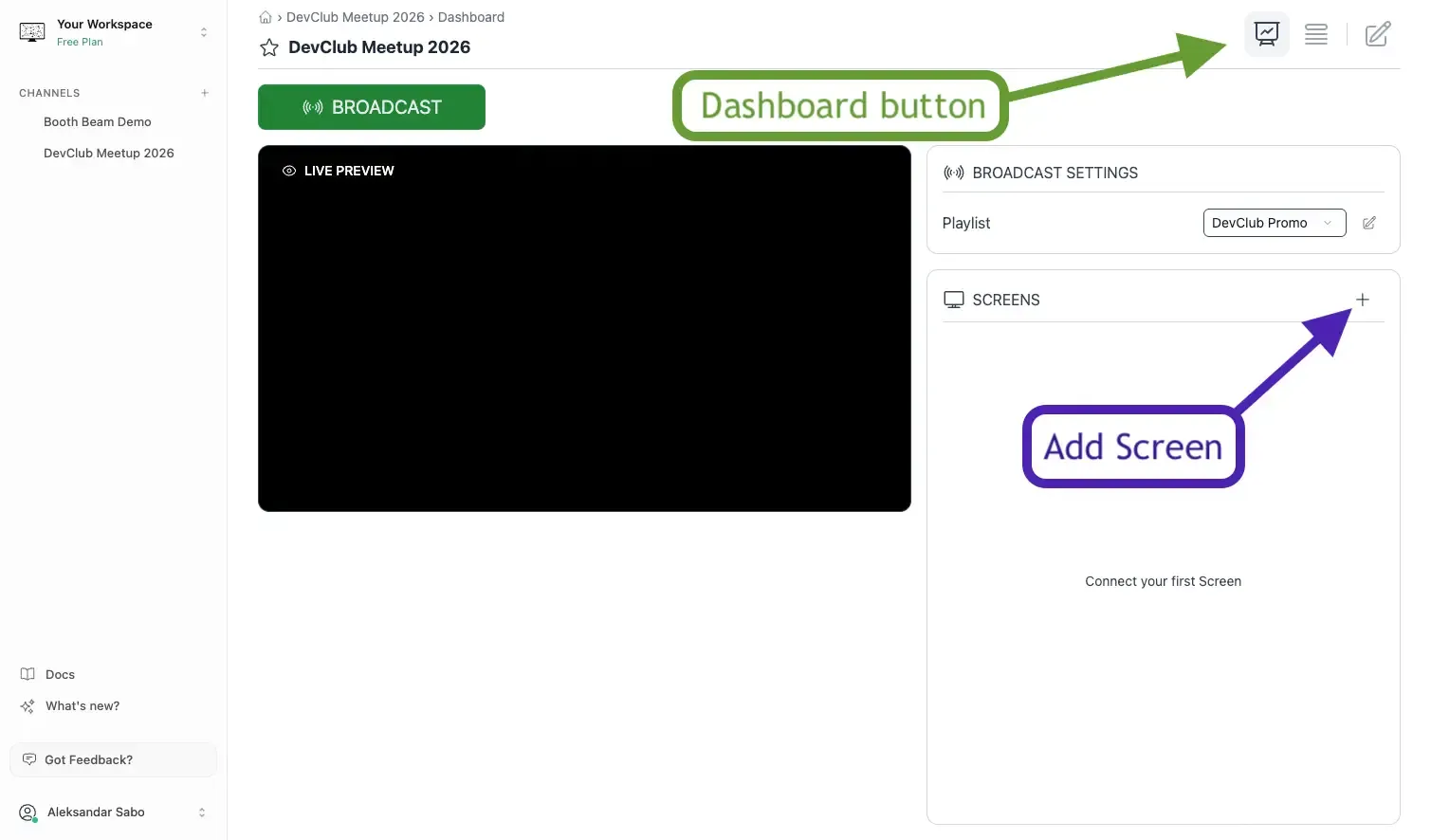
To connect it, in Booth Beam, go to Channel Dashboard and click Add Screen button.
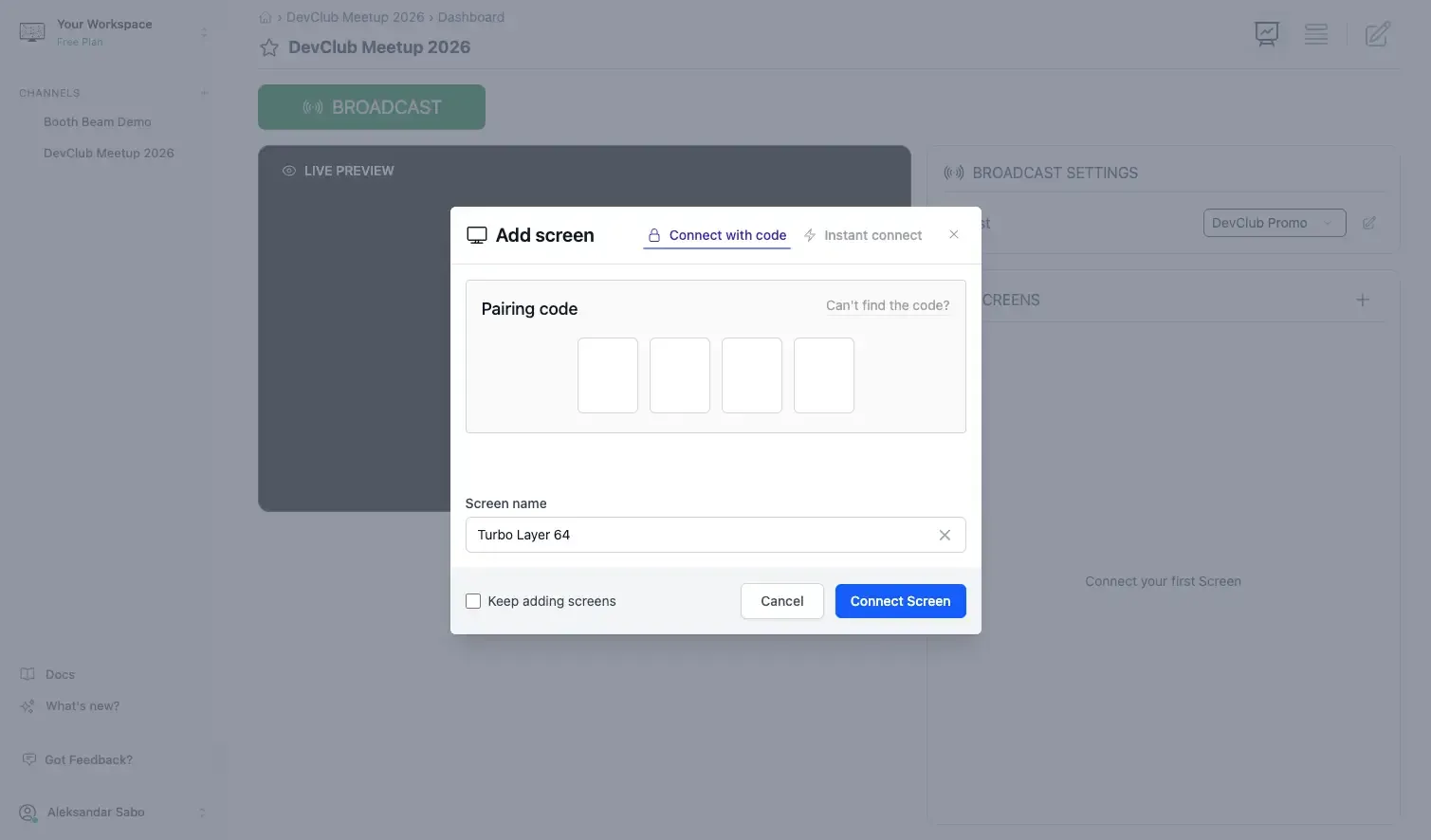
Enter the pairing code shown on your display, then click Connect Screen.
The screen will appear in your screens list.
Step 4: Broadcast to your screen
Section titled “Step 4: Broadcast to your screen”In Channel Dashboard, click Broadcast button and your content will start playing on the screen.
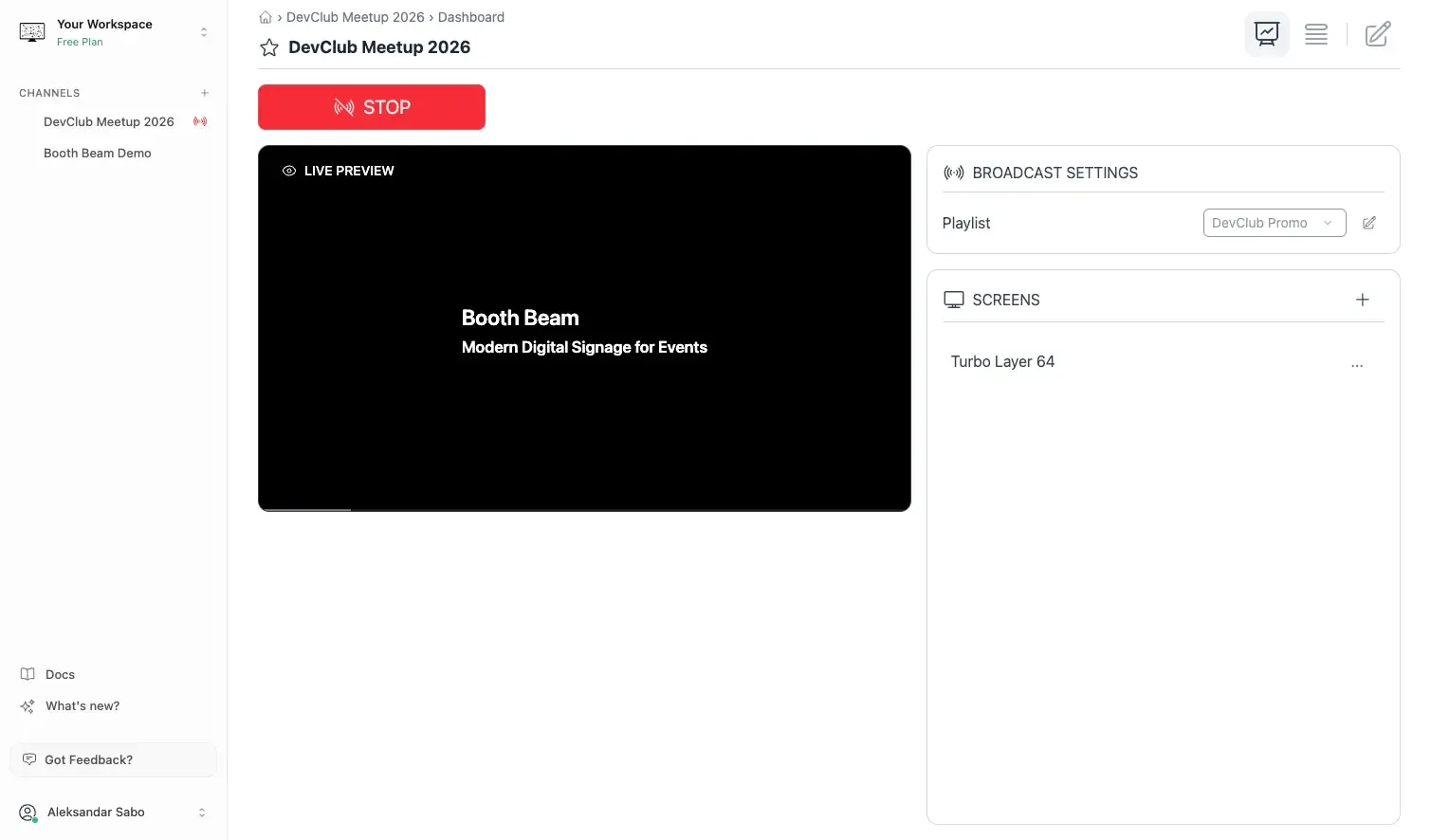
You’re live
Section titled “You’re live”That’s all it takes. Your screen is now playing your content on a loop.
From here, you can:
- Edit your playlist — changes push to screens automatically.
- Add more screens — repeat Step 3 for each display.
Need help?
Section titled “Need help?”If something isn’t working, reach out to support at [email protected].